
Annotate Student Assignment Submissions
Created On September 01, 2023
Last Updated On September 04, 2023
When students submit files (Word documents, presentation slides, graphics, etc), they will automatically be converted into PDFs that you can annotate. You can add comments, highlight, or draw on student work within Moodle.
Part 1
VIDEO OVERVIEW
Part 2
STEPS TO ANNOTATE STUDENT ASSIGMSUBMISSIONS
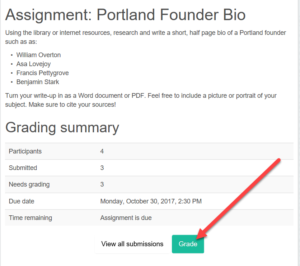
- Open the assignment you want to grade.
- Click Grade.
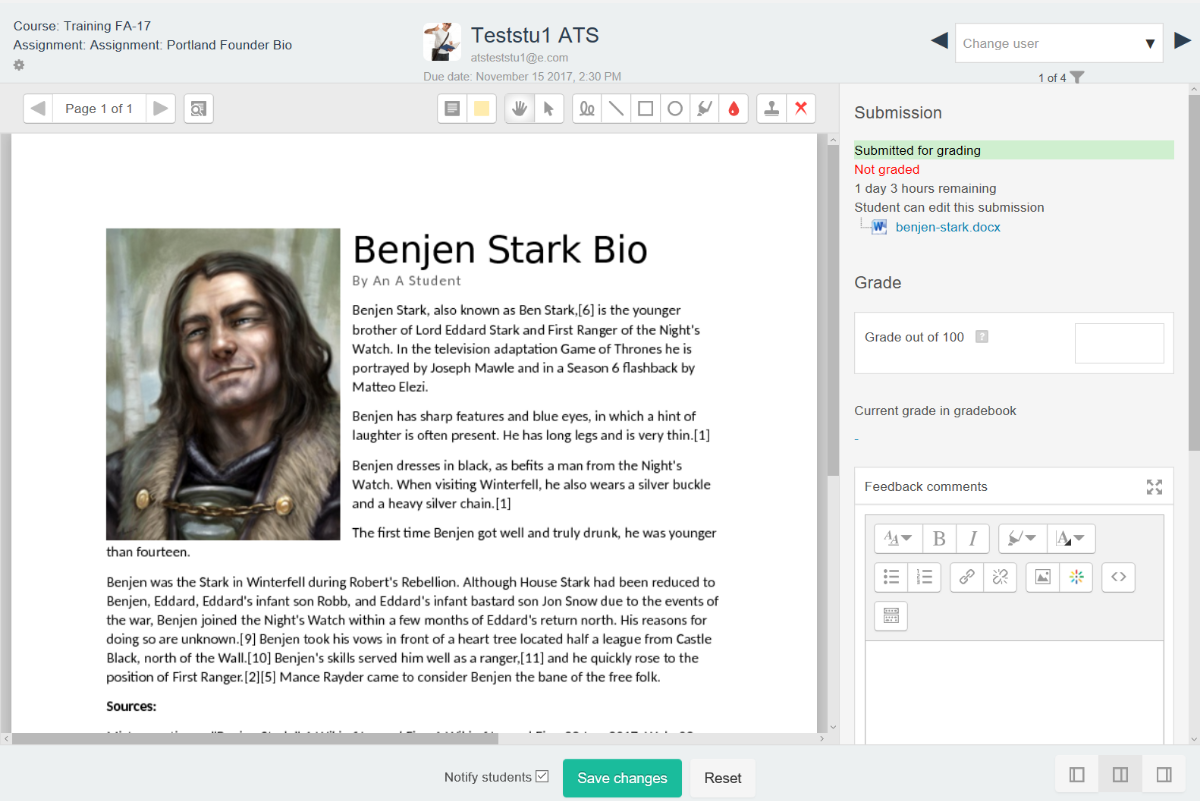
- On the grade screen, you can:
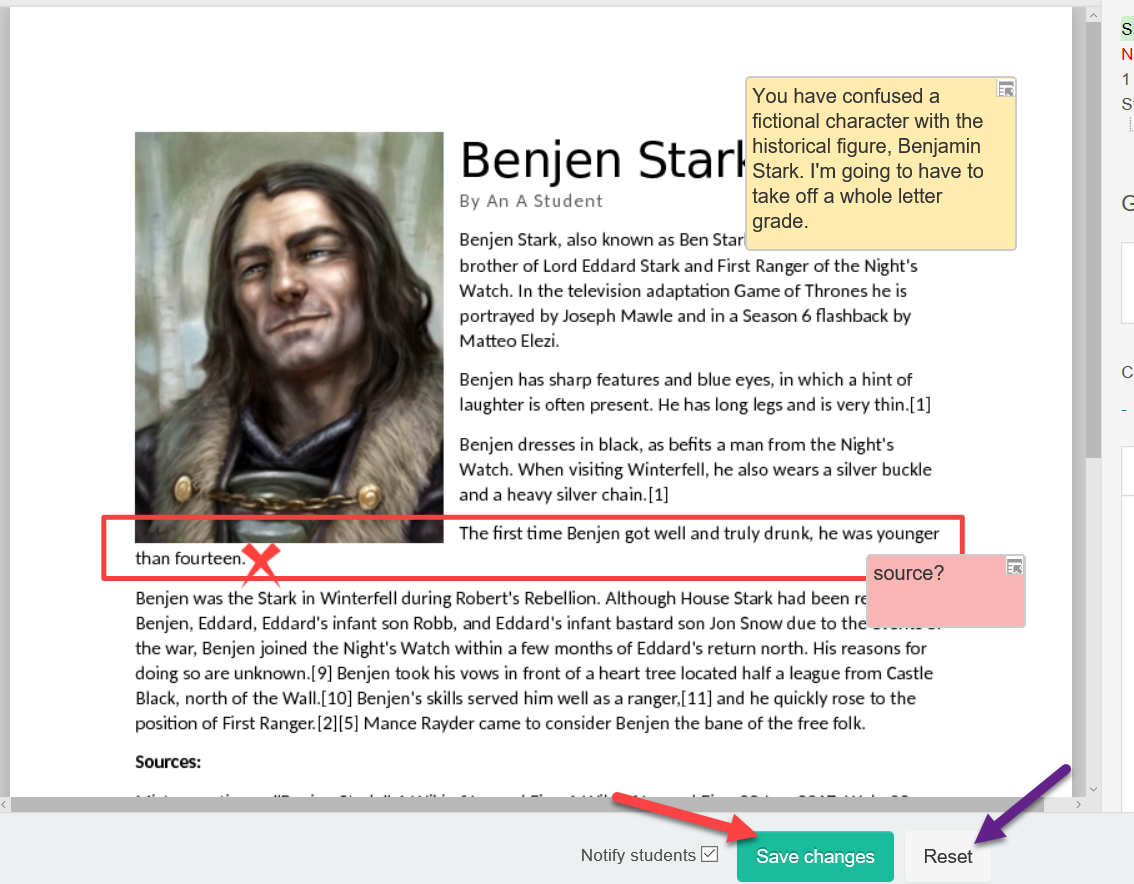
Add comments (which can be saved to a comments bank for re-use)
Draw freehand or use shapes
Highlight
Add stamps (checkmark, red X, etc)
Add a grade and summary feedback on the grade panel
Navigate between student submissions
- If you are happy with your annotations, click Save. To start over, click Reset.
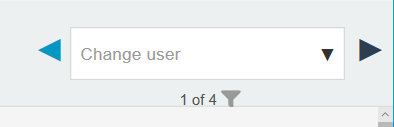
- You can click the arrows to navigate to the next student submission, search for a student submission by name, or click the filter to quickly view and jump to submissions.
Part 3
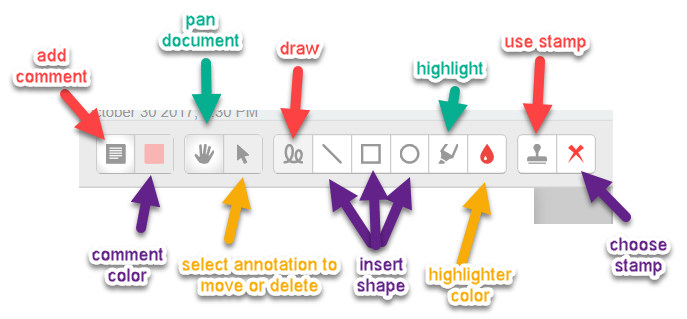
WHAT DO THE ANOTATION TOOL DO?
arrow_right_alt
Go back all guides