
Automatically Open Weeks, Topics, or Activities
Created On August 31, 2023
Last Updated On September 01, 2023
With a bit of planning ahead, instructors can set their course content to automatically become visible/available at specified dates throughout the term by adding a date access restriction.
STEPS
AUTOMATICALLY OPEN WEEKS, TOPICS, OR ACTIVITIES
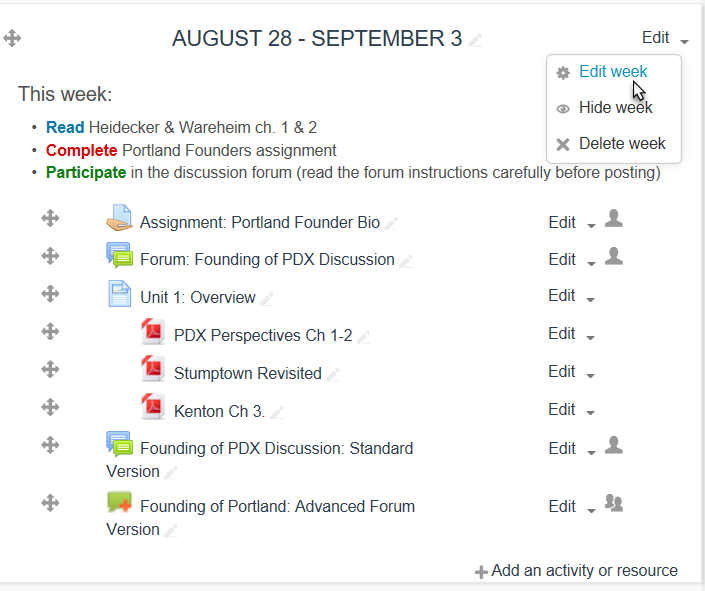
- Locate the week/topic/item you want to reveal and select Edit Week/Settings from the "Edit" drop-down.
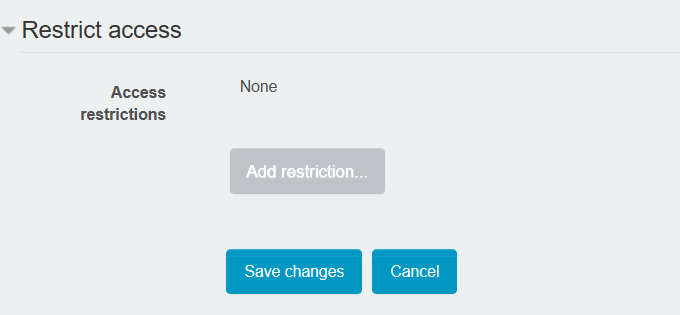
- In the "Restrict access" section, click Add restriction.
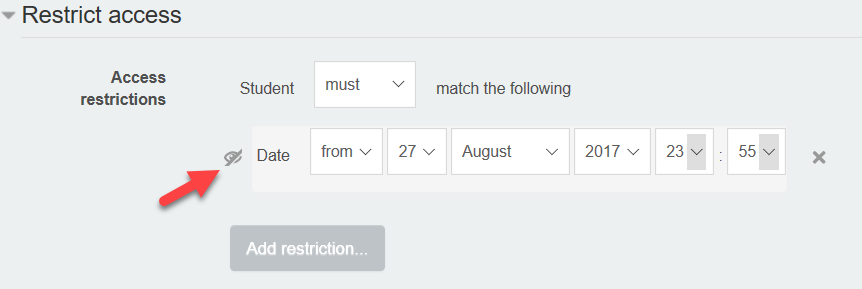
- Add the date and time you want the content to become available.
- If you want the content to be completely hidden, make sure to click the eyeball icon so that there is a slash through it. Otherwise, the content will appear greyed out and inaccessible, but students will still be able to see that it's there and when it will become available.
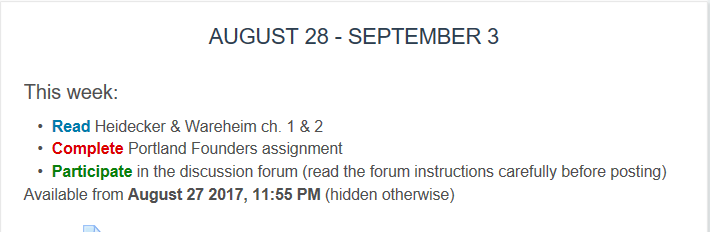
- When you visit your course page, you should see a message indicating that your content is unavailable/hidden from students until the date and time that you specified.
arrow_right_alt
Go back all guides