
Bulk Download Assignment Submissions
Created On September 04, 2023
Last Updated On September 04, 2023
This guide demonstrates how submissions for an LMS assignment can be downloaded in bulk as a ZIP file. This can be useful for faculty who want to work with student submissions outside of LMS (for example, if you want to use "track changes" in Word).
For information about uploading your completed feedback files to LMS, see the Bulk Upload Assignment Feedback Files guide. To learn how to upload grades from an offline worksheet, see the Using an Offline Grading Sheet guide.
STEPS
BULK DOWNLOAD ASSIGNMENT SUBMISSIONS
- Open the assignment you want to download submissions from.
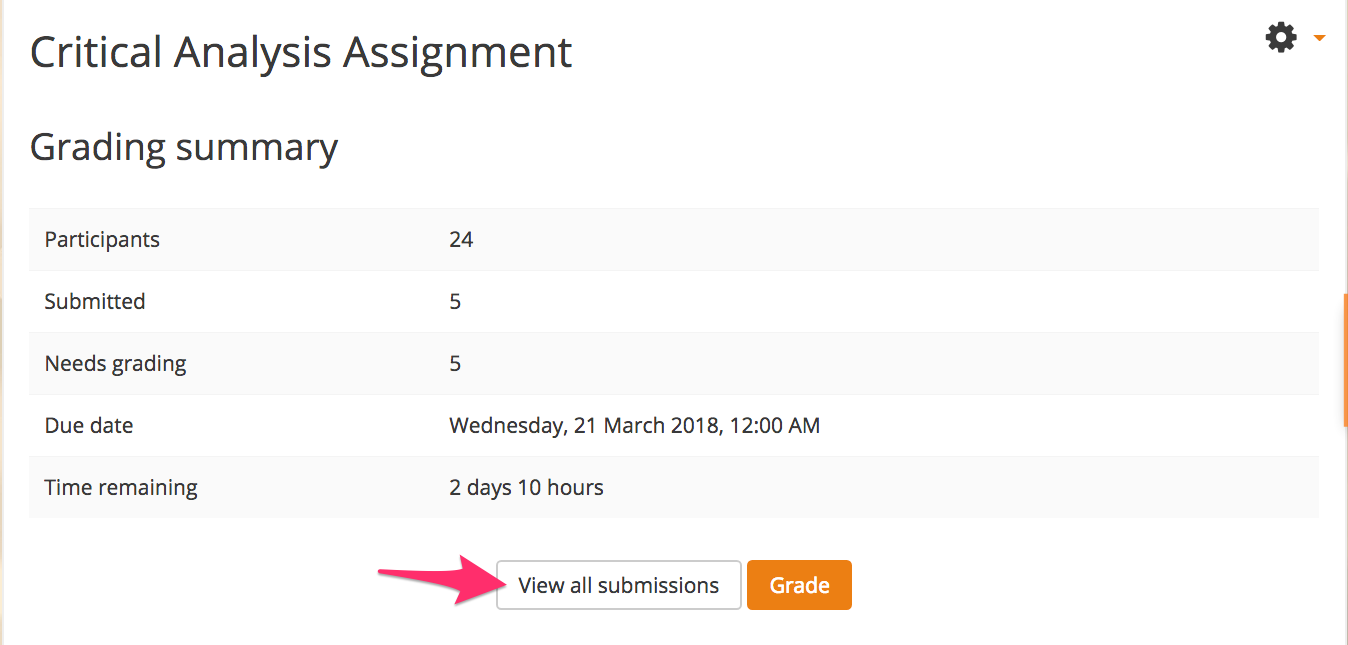
- Click View all submissions.
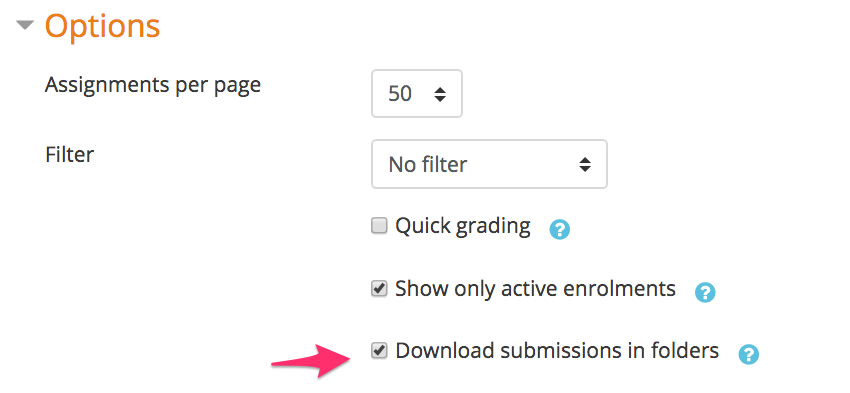
- Set your preferences in the "Options" section. If Download submissions in folders is checked, all student submissions will be placed into a subfolder with the students name. This is useful if students are submitting multiple files for the assignment.
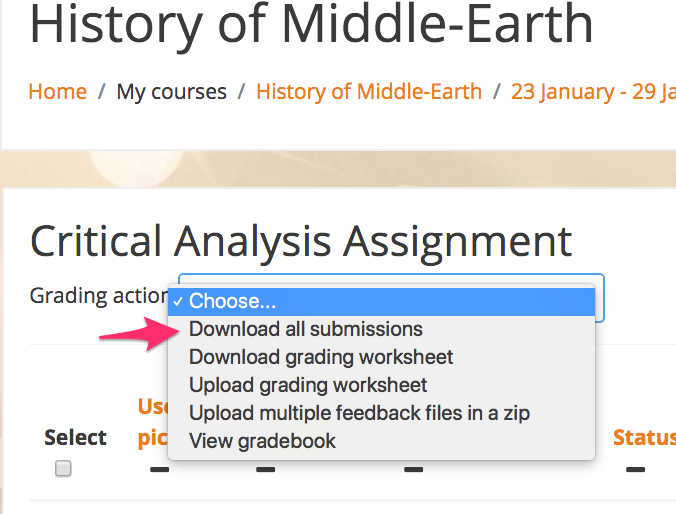
- Select Download all submissions from the "Grading actions" drop-down menu.
- Depending on your browser, you will be prompted to choose a location on your computer to save a ZIP file, or the file will begin downloading to your default downloads location.
- Find the file and unzip it. You now have a folder containing all submissions for the assignment. You can open each file to read, grade, add feedback, and annotate as needed.
- After adding feedback, save each file inside the original folder. As long as you don't change any of the filenames, you will be able to bulk upload your saved feedback to the Moodle assignment, circumventing the need to upload files individually.
arrow_right_alt
Go back all guides