
Hide Weeks, Topics, or Activities
Created On September 01, 2023
Last Updated On September 01, 2023
Instructors may choose to hide individual Moodle activities and resources so that they are not visible to students. This may be done for any number of reasons, for example, to allow materials to be tweaked before they are made available, to prevent students from working ahead, or to create a private resource area for co-instructors.
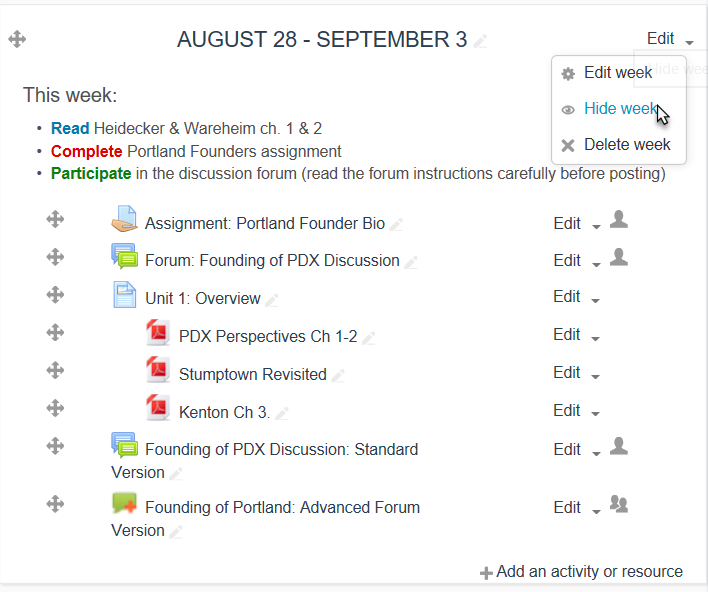
The screenshots in this article show how to hide an entire week/topic section. To hide individual activities or resources, just follow the same steps on the settings of the individual item. It is also possible to hide an entire course so it is not available to students at all. For more information, see the Hide or Unhide a Course guide.
STEPS
HIDE WEEKS, TOPICS, OR ACTIVITIES
- Go to the week or item you'd like to hide.
- Select Hide from the "Edit" drop-down.
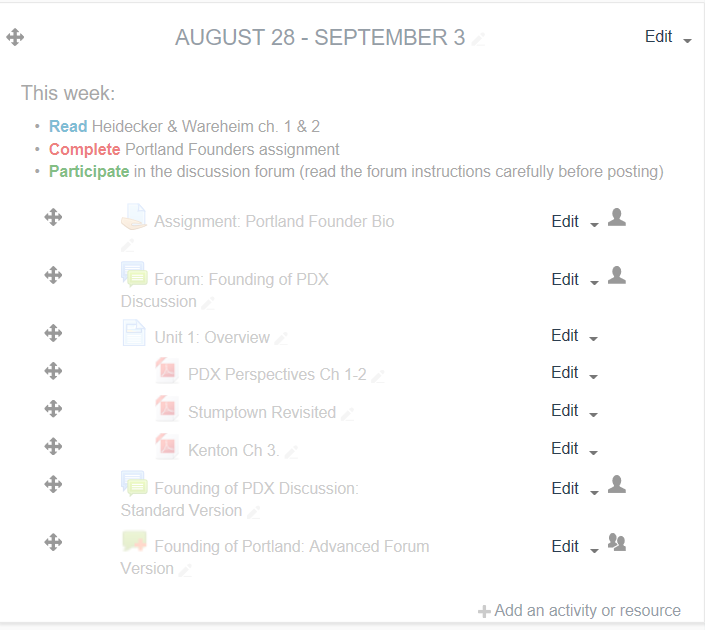
- The week or item should now be hidden. The name(s) of hidden items will appear in a lighter-gray color than visible items.
arrow_right_alt
Go back all guides