
View a Course as a Student
Created On September 01, 2023
Last Updated On September 01, 2023
It can often be useful for instructors and course designers to impersonate a student role so they can see the course as students will see it and verify content is available or hidden as intended.
STEPS
VIEW COURSE AS A STUDENT
- Open the course you want to view as a student
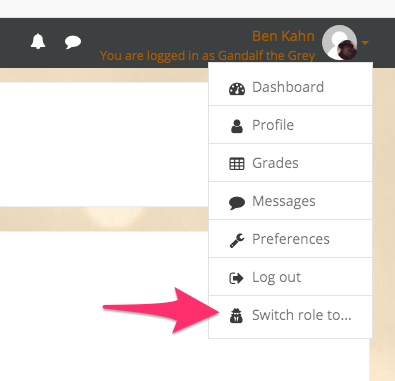
- Click on your username in the upper right corner and click Switch role to.
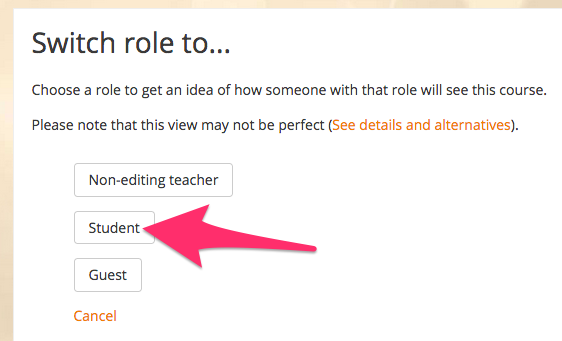
- Select the role you want to impersonate (usually Student). You will now be seeing the course like a student sees the course.
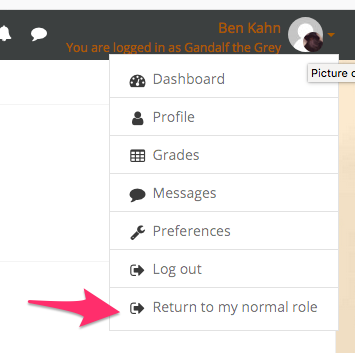
- To switch back to your usual role, click on your username again and click Return to my normal role.
arrow_right_alt
Go back all guides