
Create a Group
Created On September 04, 2023
Last Updated On September 09, 2023
If you plan to use multiple different sets of groups (for instance if you plan on rotating weekly discussion groups or using different sets of groups for different assignments), please see Create a Grouping. In addition to creating groups manually, you can Automatically Create Random Groups.
Part 1
ADD GROUPS
- Open the course you want to add groups to.
- Click Groups from the "Participants" menu in a course.

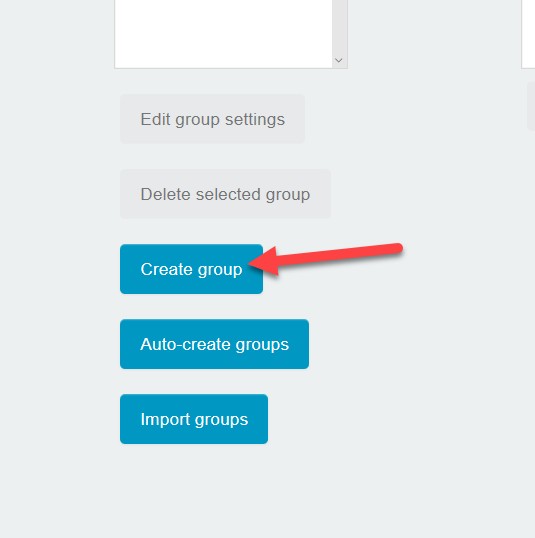
- Click Create group.
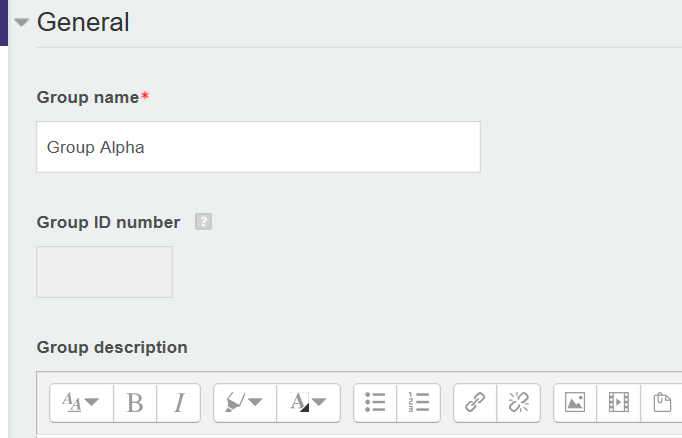
- Add a "Group name" and optionally add a description and profile picture for the group.
- Click Save changes.
Part 2
ADD MEMBERS TO A GROUP
- To add members, select the group and click Add/remove members.

- Use the selection box to choose group members from the class roster and click Add to add them to the group.

- Click Save when you're done adding all the group members.
arrow_right_alt
Go back all guides