
Create a Question Bank Category
Created On September 04, 2023
Last Updated On September 04, 2023
Your course question bank is the repository that stores any quiz questions you might want to use in your course. By default, there is one category called "Default for [name of your course]." You can organize questions by creating additional categories and subcategories. This can be extremely helpful if you plan on using multiple quizzes.
If you don't want to use the "Default for [name of your course]" category, you can delete it after you create at least one other top level category. Make subcategories by choosing Parent categories for the new category you are creating.
Part 1
VIDEO OVERVIEW
STEPS
CREATE A QUESTION BANK CATEGORY
- Click Categories from the "Question bank" drop-down in the "Course administration" menu.

- From the list of available activities, select Quiz and click Add.
- In the "Parent category" field, select how you want your new category to be grouped. If you don't want to your new category to be a child (subcategory) of the "Default" category, make sure to select Top.
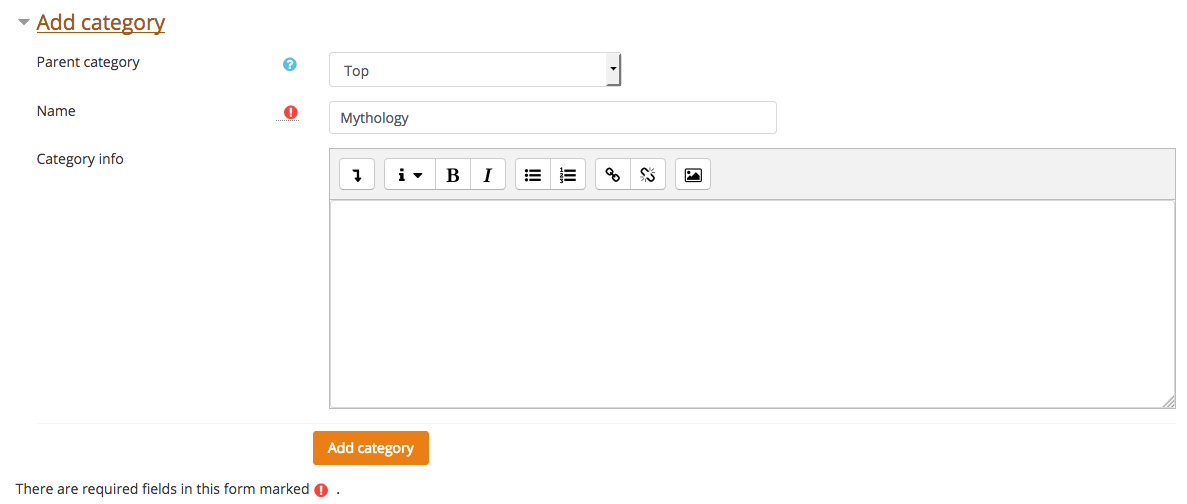
- Click Add Category
arrow_right_alt
Go back all guides