
Automatically Regrade Quizzes
Created On September 04, 2023
Last Updated On September 04, 2023
This guide covers how to regrade student quiz attempts. You might want to do this if you realized a quiz question had an error (for example, the wrong answer was marked as correct).
Before regrading a quiz, you'll want to first fix the problematic question. See how to edit quiz questions for details.
STEPS
AUTOMATICALLY REGRADE QUIZZES
- Go to the quiz that needs to be regraded.
- Click on the gear icon then select Grades, under "Responses."

- On the grades page, click the Regrade all button. This will re-run the students' answers against what’s in the question bank, so will fix scores on questions with incorrectly marked answers.
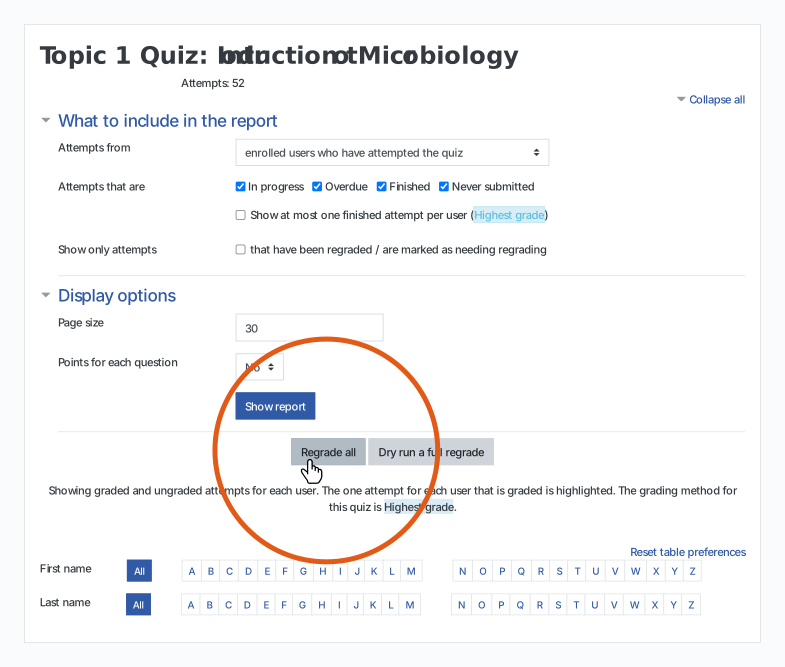
- Click Continue when prompted.
- Now in the quiz grades table, you'll see students' grades have been adjusted.
arrow_right_alt
Go back all guides