
Embed a YouTube Video
Created On September 04, 2023
Last Updated On September 04, 2023
You can embed a YouTube video simply by adding a link to the video. This works anywhere you can add text - for instance in a label, page, discussion forum, or activity description.
Tips
- You can filter YouTube to look for accessible, captioned videos.
- Embedding videos instead of linking to them may help students feel more engaged in the course and reduce potential distractions.
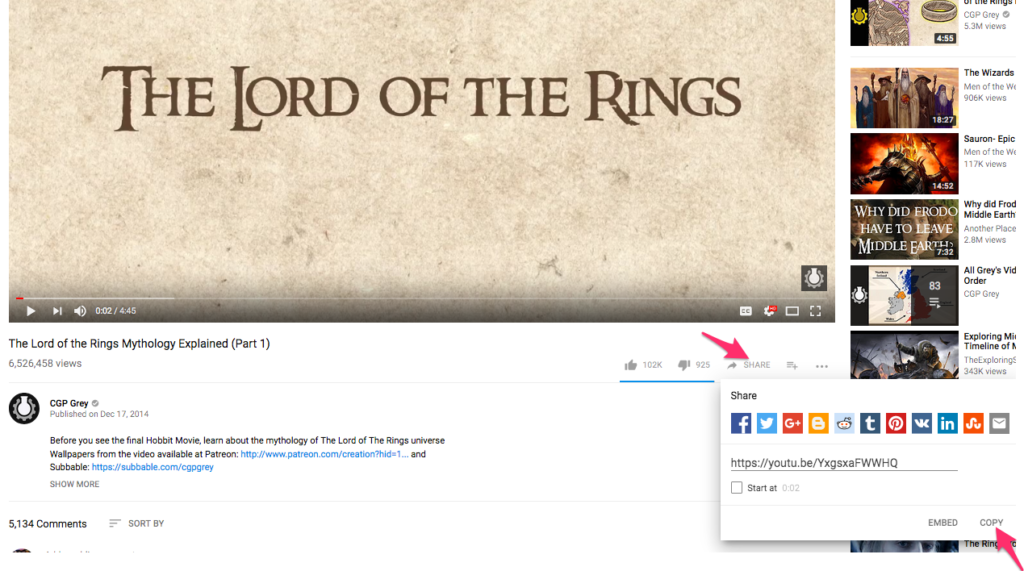
- If you want to start the video partway through the video, look for the "Start at" tickbox in the video sharing settings on YouTube when you copy the link.
- If your site is not set-up to recognize YouTube links or if you want to embed other iframe content (Google Maps, weather widgets, etc.), try using an embed code.
Video Overview
Part 1
FIND A VIDEO
- Go to YouTube and find the video you want to embed into your course.
- Click on the Share link under the video and click Copy to copy the link.
Part 2
ADD A PLACE TO PUT THE VIDEO
- In your course, click Add an activity or resource in the section you want to add the video to.
- If you want to add the video to the main page of the course, choose Label. If you want to add the video on its own page, choose Page.
Part 3
ADD THE VIDEO
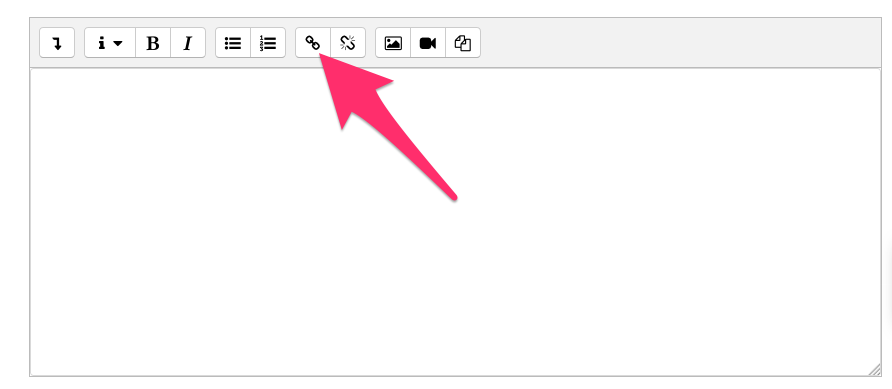
- In the text editor, click the Link tool.
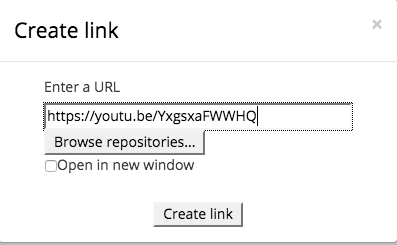
- Paste in the link you copied from YouTube and click Create Link.
- Make sure to click Save and return to course or Save and display. You should now see the video in your Moodle course.

arrow_right_alt
Go back all guides